Introduction
Did you know that nearly 1 in 5 iPhone 13 users have reported some form of overheating issue since the device’s launch? That’s a staggering number, and if you’re reading this, chances are you’re one of them. I’ve been there. You’re scrolling through Instagram, maybe watching a YouTube video, and suddenly your iPhone 13 feels like it could fry an egg. It’s frustrating to have iPhone 13 overheating issues. It’s worrying. And honestly? It shouldn’t be happening.
Here’s the thing: iPhone 13 overheating isn’t just an inconvenience. Excessive heat can degrade your battery life, cause unexpected shutdowns, and even damage internal components over time. If you’ve noticed your iPhone battery draining fast alongside the heat, that’s a telltale sign that something needs attention. But don’t panic! In most cases, the problem is entirely fixable.
In this guide, I’m breaking down every possible cause behind your iPhone 13 running hot and giving you real, actionable solutions that actually work. Whether it’s a rogue app draining your processor, a buggy iOS update, or something as simple as your phone case trapping heat, we’ll cover it all. Let’s get your iPhone 13 back to running cool and smooth!
Why Does My iPhone 13 Overheat? Understanding the Basics
Before we dive into fixes, let’s understand what’s actually happening inside your iPhone 13 when it heats up. Spoiler: a little warmth is perfectly normal.
The iPhone 13 is powered by Apple’s A15 Bionic chip, a powerhouse processor that handles everything from facial recognition to 4K video recording. When you push it hard, it generates heat. That’s just physics. The real question is: when does “warm” cross the line into “overheating”?
Apple states that the iPhone’s safe operating temperature range is between 32°F and 95°F (0°C to 35°C). When your device exceeds this range, iOS activates its built-in thermal management system. You might notice your screen dimming, cellular signal weakening, the camera flash disabling, or, in extreme cases, a temperature warning screen that prevents you from using the phone entirely.
Now here’s an important distinction. If your iPhone 13 feels slightly warm after 30 minutes of gaming or GPS navigation, that’s expected behavior. But if it’s uncomfortably hot to the touch during basic tasks like texting or browsing, or if it’s shutting down on its own, something is off. And if your iPhone is not turning on after these episodes, you could be dealing with a more serious issue.
It’s also worth noting that the iPhone 13, while still a capable device in 2026, is now running newer and more demanding versions of iOS than it was originally designed for. This can put additional strain on the processor and contribute to thermal issues that weren’t present in its earlier years.
Most Common Causes of iPhone 13 Overheating
So what’s actually making your iPhone 13 run hot? In my experience, it usually comes down to one (or a combination) of these culprits:
1. Too Many Apps Running Simultaneously
This is the number one offender. Every app you leave open in the background consumes processing power and memory. When you’re multitasking between a dozen apps, the A15 chip is working overtime, generating significant heat. Resource-heavy apps like games, video editors, and augmented reality applications are especially demanding.
2. Outdated or Buggy iOS Software
Software bugs are a sneaky cause of overheating. Sometimes an iOS update introduces a background process that goes haywire, consuming CPU resources even when you’re not actively using your phone. Conversely, running an outdated version of iOS means you’re missing thermal management patches that Apple has already released.
3. Charging with Non-MFi Certified or Damaged Accessories
Not all chargers are created equal. Using a cheap, uncertified cable or a damaged adapter can cause irregular power delivery, which generates excess heat. This is one of the most common iPhone charging problems we see. If your iPhone charging port is not working properly, that can compound the issue even further.
4. Using Your Phone While Charging
We all do it, scrolling through social media while the phone is plugged in. But this forces your iPhone to simultaneously draw power and perform tasks, creating a perfect storm for overheating. Gaming while charging? That’s practically guaranteed to make your device hot.
5. Thick or Non-Breathable Phone Cases
Your iPhone dissipates heat through its aluminum and glass body. A thick, insulated case acts like a blanket, trapping that heat inside. If you’ve recently switched to a bulky case and noticed more heat, that’s likely the connection.
6. Direct Sunlight and Hot Environments
Leaving your iPhone on a car dashboard in summer or using it poolside in direct sunlight is a recipe for overheating. Environmental heat combined with the device’s own thermal output can quickly push temperatures into the danger zone.
7. Background App Refresh and Location Services
These are the silent battery and processor drains. Background App Refresh allows apps to update their content even when you’re not using them, while Location Services constantly pings your GPS. Both generate heat over time, especially when multiple apps have these permissions enabled.
8. Degraded Battery Health
If your iPhone 13’s battery health has dropped below 80%, the battery has to work harder to deliver the same power, generating more heat in the process. A worn-out battery is both a cause and a consequence of overheating; it’s a vicious cycle. Check out our comprehensive iPhone battery replacement guide to learn when it’s time for a new battery.
9. Streaming and Large Downloads
Streaming HD video or downloading large files keeps your processor, GPU, and wireless radios active for extended periods. This sustained workload generates consistent heat that builds up over time.
10. Rogue Apps with Memory Leaks
Sometimes a single poorly coded app can hijack your CPU. Memory leaks cause an app to consume progressively more resources until your phone becomes sluggish and hot. Checking your Battery Usage panel can help identify the offender.
How to Check if Your iPhone 13 Is Actually Overheating
Before you start troubleshooting, it’s worth confirming whether your iPhone 13 is genuinely overheating or just running a bit warm. Here’s how to tell the difference:
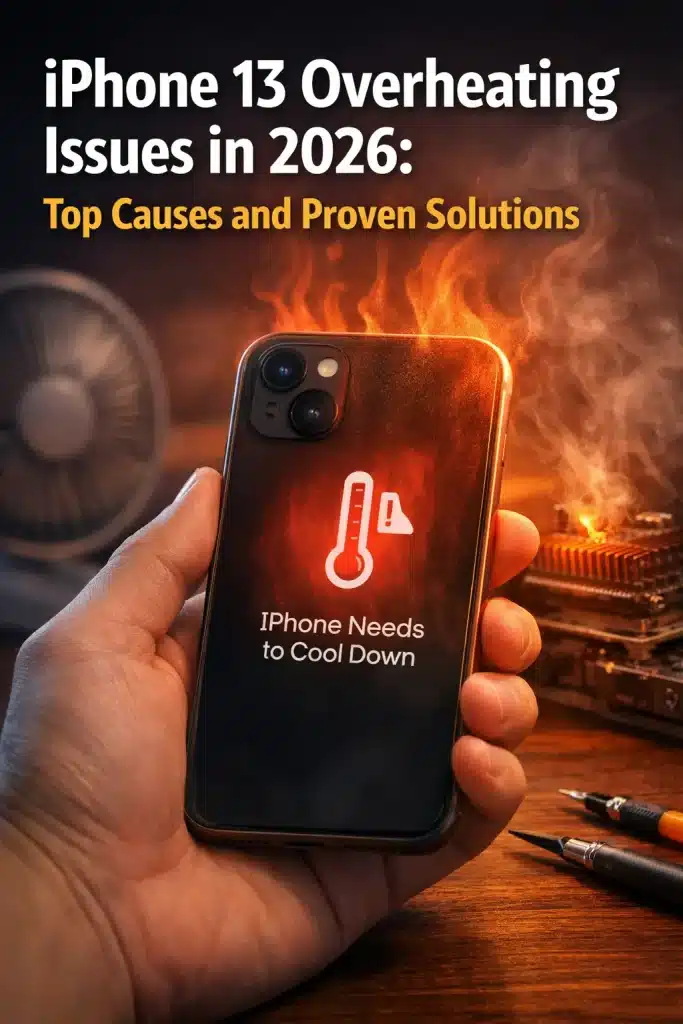
The most obvious sign is Apple’s built-in temperature warning screen. If you see a black screen with a thermometer icon and the message “iPhone needs to cool down before you can use it,” your device has definitely exceeded safe operating temperatures. This is iOS’s emergency thermal protection kicking in.
For a more proactive check, head to Settings > Battery > Battery Health & Charging. If your Maximum Capacity is below 80%, your battery is significantly degraded and likely contributing to heat issues. Also, check the Battery Usage by App section. If any single app is consuming a disproportionate amount of battery (say, 40%+ when you’ve barely used it), that’s your likely culprit.
Other signs of thermal throttling include your screen suddenly dimming on its own, the camera flash becoming unavailable, cellular signal dropping, or your phone becoming noticeably sluggish during tasks it normally handles with ease. If charging slows to a crawl or stops entirely, that’s another thermal protection measure at work.
Quick Fixes to Cool Down an Overheating iPhone 13
Your iPhone 13 is hot right now, and you need it cooled down fast. Here are immediate steps you can take:
- Stop what you’re doing and close all apps. Swipe up from the bottom (or double-click the home button on older models) and swipe away every open app. This immediately reduces processor load.
- Remove your phone case. Pop it off right away. This alone can make a noticeable difference as it allows heat to dissipate through the phone’s body.
- Move away from heat sources. Get out of direct sunlight. Move away from hot car dashboards, radiators, or other heat sources. Place your phone on a cool, flat surface; a marble countertop works great.
- Enable Airplane Mode. This kills all wireless activity, cellular, Wi-Fi, Bluetooth, and GPS, in one tap. It’s the fastest way to reduce the number of active processes generating heat.
- If it’s charging, unplug it. Charging generates heat on its own. If your device is already overheating, adding charging heat on top makes things worse. Wait until it cools down completely before plugging back in.
- Restart your iPhone. A simple restart can kill stuck background processes that you can’t manually close. Press and hold the side button + volume button, then slide to power off. Wait 30 seconds, then turn it back on.
A critical warning: Never put your iPhone in a freezer, refrigerator, or directly against an ice pack. The rapid temperature change can cause condensation inside the device, which can damage internal components far worse than the heat itself.
Long-Term Solutions to Prevent iPhone 13 Overheating
Quick fixes are great in the moment, but if your iPhone 13 keeps overheating, you need a more sustainable approach. Here’s how to keep it cool for the long haul:
- Keep iOS updated. Apple regularly releases updates that include thermal management improvements and bug fixes. Go to Settings > General > Software Update and make sure you’re running the latest version. Many overheating issues that users have reported over the years were resolved by a simple software update.
- Audit Your Apps. Go through your app library and delete anything you haven’t used in the past month. Unused apps can still run background processes that consume resources. For the apps you keep, check their settings for unnecessary permissions.
- Disable Background App Refresh. Navigate to Settings > General > Background App Refresh and either turn it off entirely or selectively disable it for apps that don’t need real-time updates. You don’t need your calculator app refreshing in the background.
- Manage Location Services. Go to Settings > Privacy & Security > Location Services and set most apps to “While Using” instead of “Always.” Many apps request constant location access when they only need it occasionally.
- Reduce Screen Brightness. A display running at maximum brightness consumes significant power and generates heat. Enable Auto-Brightness under Settings > Accessibility > Display & Text Size to let your phone optimize this automatically.
- Use Certified Charging Accessories. Invest in MFi-certified (Made for iPhone) cables and adapters. They’re designed to deliver the right amount of power safely. Cheap knockoffs can cause irregular charging patterns that generate excess heat.
- Switch to a Breathable Phone Case. Look for cases with open ventilation cutouts or thin, heat-conductive materials. Some brands specifically design cases with thermal management in mind.
- Enable Low Power Mode During Heavy Use. When you know you’ll be gaming, streaming, or navigating for a while, toggle on Low Power Mode. It reduces background activity and some visual effects, giving your processor a bit of a break.
- Limit High-Performance Tasks in Hot Weather. If it’s 95°F outside and you’re in direct sunlight, maybe skip the 4K video recording session. Being mindful of your environment can prevent a lot of overheating incidents.
Could It Be a Hardware Problem? When to Visit a Repair Professional
You’ve tried every software fix on this list, and your iPhone 13 still overheats. Now what? It might be time to consider that the problem is hardware-related.
Several signs point to a hardware issue. If your iPhone’s battery is visibly swollen (the screen or back glass is lifting away from the frame), stop using the device immediately; this is a safety hazard. Random shutdowns, especially when the battery percentage is above 20%, often indicate a failing battery. If you notice your iPhone back glass is cracked or damaged, that can also affect the phone’s thermal management since the glass plays a role in heat dissipation.
You can run Apple Diagnostics remotely by contacting Apple Support through their website or the Apple Support app. They can guide you through a diagnostic test that checks battery health, thermal sensors, and other components without requiring a store visit.
Before visiting any repair shop, check your warranty status. If you’re still under AppleCare+, many hardware-related overheating issues may be covered. Even without coverage, a battery replacement is relatively affordable and can resolve the vast majority of hardware-related heat issues.
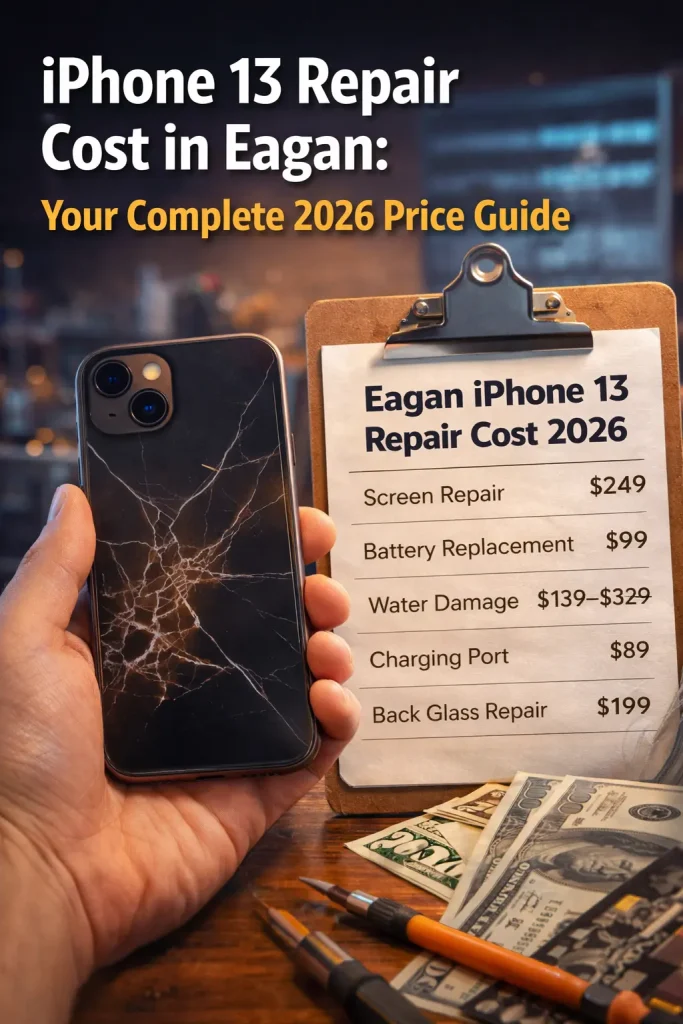
If you’re in the Minneapolis-St. Paul metro area, Helpertech offers professional iPhone 13 diagnostics and repair services. With convenient locations in Eagan (2040 Cliff Rd #103, Eagan, MN 55122) and Burnsville (14321 Nicollet Ct #100, Burnsville, MN 55306), they serve residents across the Twin Cities, including Apple Valley, Lakeville, Rosemount, Savage, Prior Lake, Bloomington, Richfield, Mendota Heights, Inver Grove Heights, and surrounding communities.
Their experienced technicians can diagnose whether your overheating issue is battery-related, a sensor problem, or something else entirely, and get it fixed fast. If you’re wondering about the most cost-effective approach, check out their guide on whether it’s cheaper to repair or replace a phone. And if you need help choosing a reliable technician, here’s their advice on how to find the right mobile phone repair shop.
Pro tip: Always back up your data before any repair. Use iCloud or iTunes to create a full backup so you don’t risk losing photos, messages, or app data during the repair process.
Does Updating iOS Fix iPhone 13 Overheating?
Short answer: often, yes. Long answer: It depends on what’s causing the problem.
Apple has a history of addressing thermal management issues through software updates. From iOS 15 through the current iOS versions, multiple patches have specifically targeted overheating bugs. For example, iOS 15.4 addressed a battery drain issue that caused excessive heating, and iOS 17.0.3 was released specifically in response to widespread overheating complaints across the iPhone 15 lineup, with spillover benefits for iPhone 13 users as well.
However, here’s something many people don’t realize: your iPhone often gets warm right after an update, and that’s actually normal. After installing a new iOS version, your device reindexes Spotlight search, optimizes apps, and performs background tasks that can temporarily spike CPU usage and heat output. This post-update warmth typically subsides within 24 to 48 hours. If your phone is still overheating a few days after the update, the issue is likely something else.
To check for updates, go to Settings > General > Software Update. If an update is available, connect to Wi-Fi, plug in your charger, and let it install. For persistent overheating that no update seems to fix, consider a factory reset as a last resort. Go to Settings > General > Transfer or Reset iPhone > Erase All Content and Settings. This wipes your device clean and reinstalls iOS fresh, which can resolve deep software issues. Just make sure to back up everything first!
Don’t forget about carrier settings updates, either. These are smaller updates that optimize how your iPhone communicates with your carrier’s network. Go to Settings > General > About. If an update is available, you’ll be prompted to install it. Poor cellular connectivity can cause your radio to work harder, generating additional heat.
iPhone 13 Overheating While Charging — Causes and Fixes
If your iPhone 13 specifically overheats during charging, that’s a narrower problem with targeted solutions.
- First, understand that some warmth during charging is completely normal. Lithium-ion batteries generate heat as they charge, it’s part of the chemistry. The issue arises when the heat becomes excessive.
- Wireless charging generates more heat than wired charging. That’s because wireless charging is inherently less efficient; energy lost during the transfer converts to heat. If your iPhone consistently overheats on a wireless charger, switching to a wired connection can make an immediate difference.
- Fast chargers (20W and above) push more power into the battery in less time, which naturally produces more heat. If overheating while charging is your primary issue, try switching to Apple’s standard 5W adapter. Yes, it’s slower, but it’s also much gentler on your device’s thermal management.
- Your charging environment matters too. Charging under a pillow, on a blanket, or in a hot car is asking for trouble. Always charge on a hard, flat, well-ventilated surface. Remove your phone case during charging if heat is a concern.
Enable Optimized Battery Charging by going to Settings > Battery > Battery Health & Charging. This feature learns your daily charging patterns and waits to finish charging past 80% until right before you typically need your phone. This reduces the time your battery spends at full charge (which generates heat) and extends overall battery lifespan.
And the golden rule: avoid using your phone while it charges. I know it’s tempting, but letting your iPhone charge undisturbed is the simplest way to prevent charging-related overheating.
iPhone 13 Overheating During Gaming or Heavy Use
Let’s be honest, if you’re a mobile gamer, you’ve probably felt your iPhone 13 get warm. Graphically intensive titles like Genshin Impact, PUBG Mobile, or Call of Duty Mobile push the A15 Bionic chip to its thermal limits. Here’s how to keep gaming without turning your phone into a hand warmer:
- Lower in-game graphics settings. Most mobile games offer adjustable settings for frame rate, resolution, and effects quality. Dropping from “Ultra” or “High” to “Medium” reduces GPU workload significantly. You’ll still enjoy the game, and your phone will thank you.
- Take regular breaks. After 30 to 45 minutes of intensive gaming, give your phone a 10-minute breather. Set it down (case off, preferably) and let it cool before diving back in. This prevents the sustained heat buildup that triggers thermal throttling.
- Close everything else. Before launching a demanding game, close all other apps and disable Background App Refresh. You want every ounce of processing power going to the game, not to Instagram refreshing in the background.
- Consider a phone cooling accessory. Clip-on phone coolers and cooling fans have become increasingly popular among mobile gamers. Do they work? Some of them actually do. Look for Peltier-based coolers (thermoelectric cooling) rather than simple fan-based models. They can reduce surface temperatures by several degrees, which may be enough to prevent thermal throttling.
- Never game while charging. This combines the heat from maximum CPU/GPU workload with charging heat, a recipe for overheating and long-term battery damage.
iPhone 13 Overheating — Frequently Asked Questions
Is it normal for iPhone 13 to get warm?
Yes, mild warmth during charging, gaming, GPS navigation, or right after an iOS update is perfectly normal. It becomes a concern when the device is uncomfortably hot to hold or displays Apple’s temperature warning.
Can overheating permanently damage my iPhone 13?
Repeated overheating can degrade your battery faster, reducing its maximum capacity and lifespan. In extreme cases, it can damage the display, processor, or other internal components. That’s why addressing the issue early is important.
Will Apple replace my iPhone if it keeps overheating?
If you’re under warranty or AppleCare+ and the overheating is caused by a manufacturing defect, Apple may replace or repair the device. For out-of-warranty devices, you’ll likely be quoted a repair fee.
Does overheating affect iPhone 13 battery lifespan?
Absolutely. Heat is the number one enemy of lithium-ion batteries. Chronic overheating accelerates chemical degradation inside the battery, leading to reduced capacity and shorter overall lifespan.
Should I use a cooling pad or a fan for my iPhone?
For casual use, it’s unnecessary. For heavy gaming or prolonged video recording, a quality Peltier-based cooling clip can help. Just make sure it’s designed for phones and doesn’t create condensation.
Can a factory reset fix overheating issues?
It can, especially if the problem is software-related. A factory reset eliminates rogue apps, corrupted settings, and software bugs. Just make sure to back up all your data before resetting.
Conclusion: Don’t Let Overheating Ruin Your iPhone 13 Experience
Let’s be real, an overheating iPhone 13 is more than just an annoyance. It’s a signal that something needs attention, whether it’s a software glitch, a bad charging habit, or, in rarer cases, a hardware issue.
The good news? Most overheating problems are completely solvable with the steps we’ve covered. Start with the quick fixes, close those background apps, ditch the thick case, and make sure your iOS is up to date. If the problem persists, dig deeper into your battery health and app usage patterns. And if nothing works, don’t hesitate to seek professional help.
For residents of the Twin Cities metro area, Helpertech is your go-to solution for iPhone 13 overheating, battery replacement, charging issues, and all smartphone repairs. I’d love to hear from you, which fix worked for your iPhone 13? And if you found this guide helpful, share it with a friend who’s been complaining about their hot iPhone. Trust me, they’ll thank you!